Assessments & report cards
This tutorial covers the full assessment cycle in Mwalimu Ease: defining your term's assessments, capturing marks (by hand or bulk upload), tracking who still owes marks, and generating CBC-aligned report cards parents can verify.
1. Set up the term's assessments
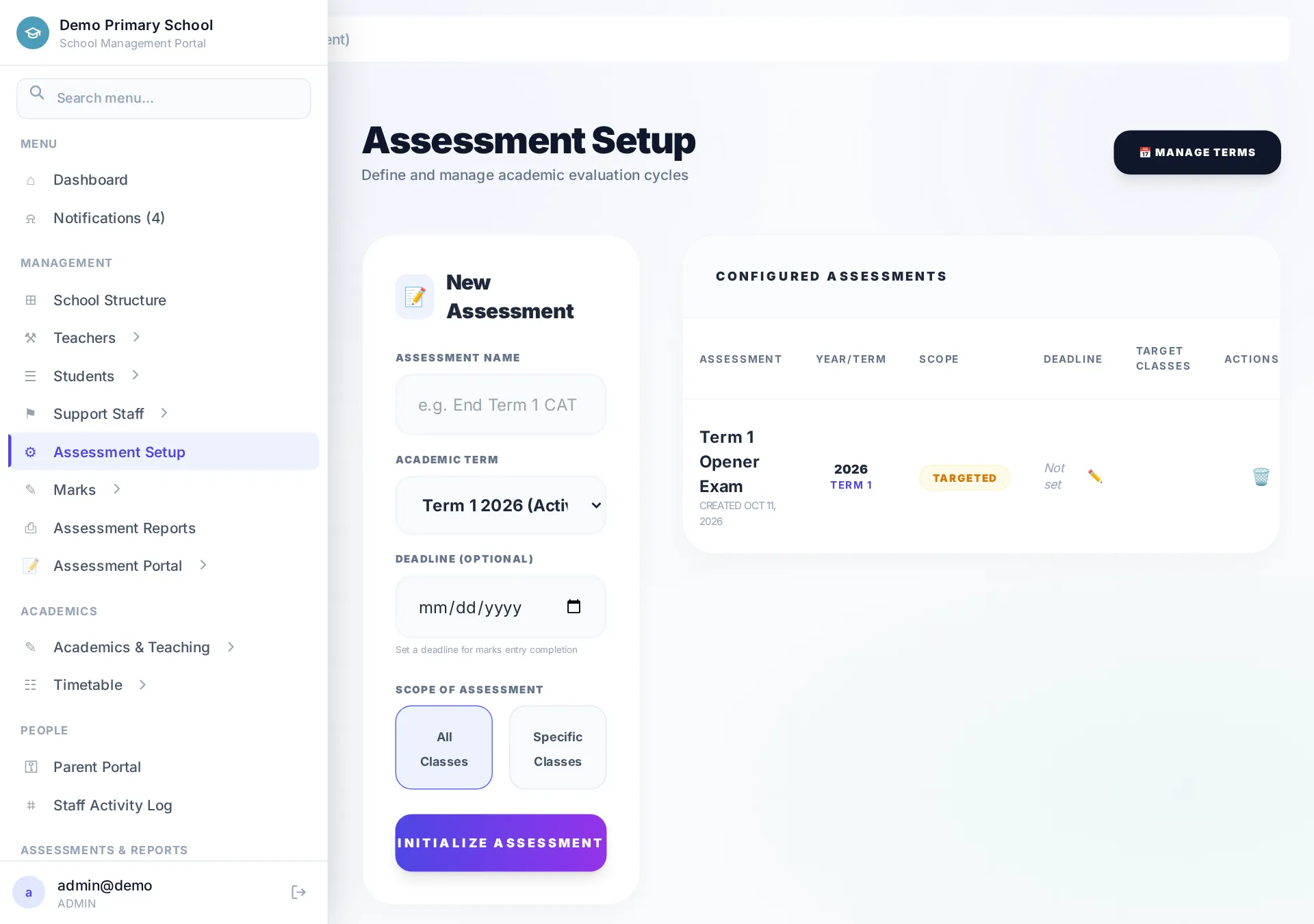
Before marks can go in, an admin defines the assessments for the term. Open Academics → Assessment Setup (or Assessment Setup in the menu). Create one assessment per milestone — for example Opener Exam, Mid-Term and End-Term — each tied to an academic term with a marks-entry deadline.
2. Enter marks
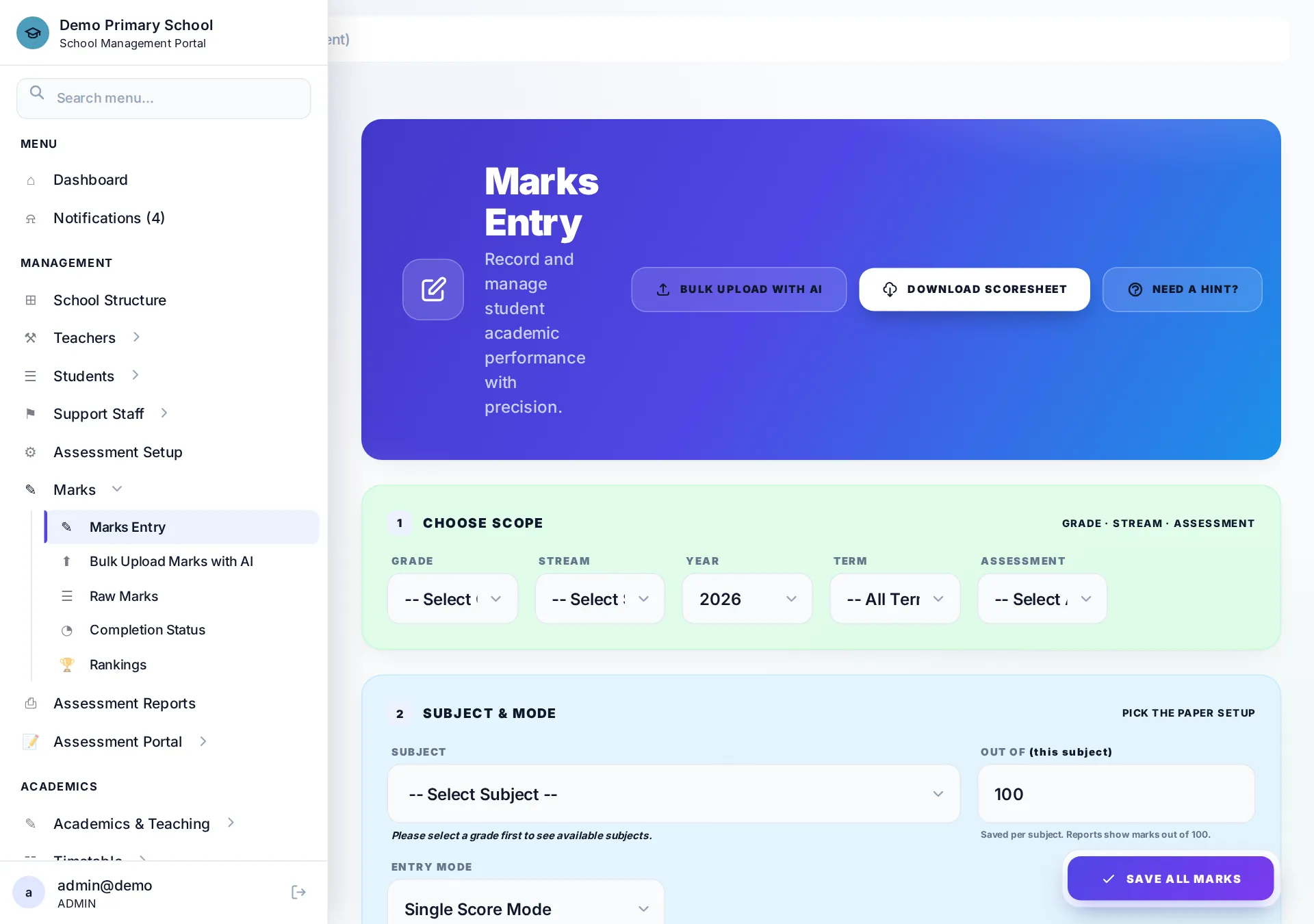
Teachers open Marks → Marks Entry, pick the grade, stream, assessment and subject, and get a grid of learners with score fields — one column per paper if the subject is split into papers (e.g. Maths Paper 1 / Paper 2). Scores save in one action, and CBC performance levels are computed automatically.
- Teachers only see the classes and subjects they're assigned to — admins see everything.
- Editing a saved score is fine up to the deadline; report cards always use the latest values.
Bulk upload (with AI)
For a whole class at once, use Bulk Upload Marks: download the Excel template, fill in scores and upload — or photograph a handwritten mark sheet and let the AI read it into the grid for review before saving.
3. Track completion
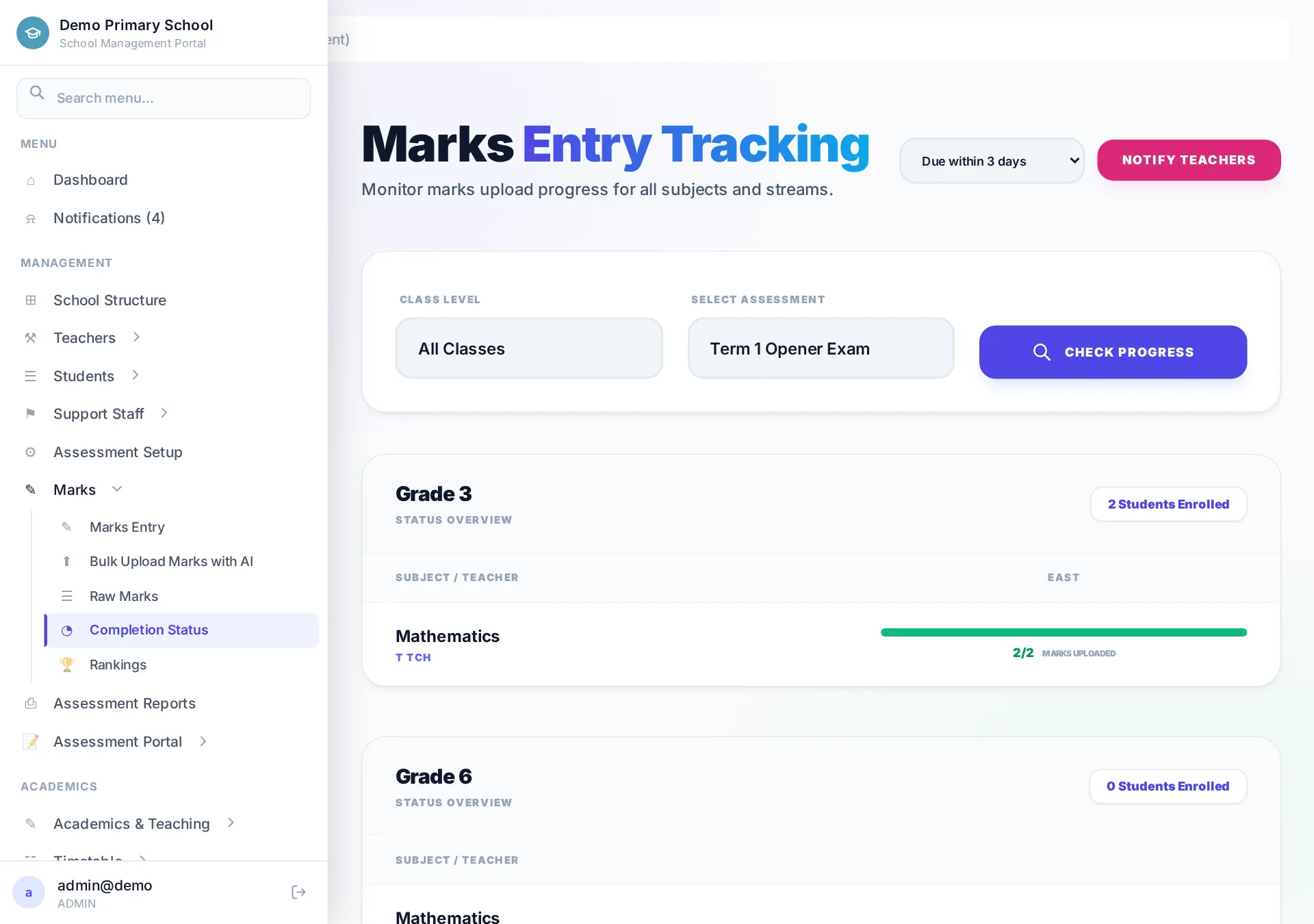
Under Marks → Completion Status admins see, per class and subject, how many learners have scores for each assessment — the quickest way to spot the two teachers who haven't submitted before report-card day.
4. Generate CBC report cards
Open Assessment Reports (Reports home), choose the term and class, then Generate. Mwalimu Ease compiles each learner's scores across subjects into a branded, CBC-aligned report card — performance levels, class position, attendance summary and teacher comments where configured.
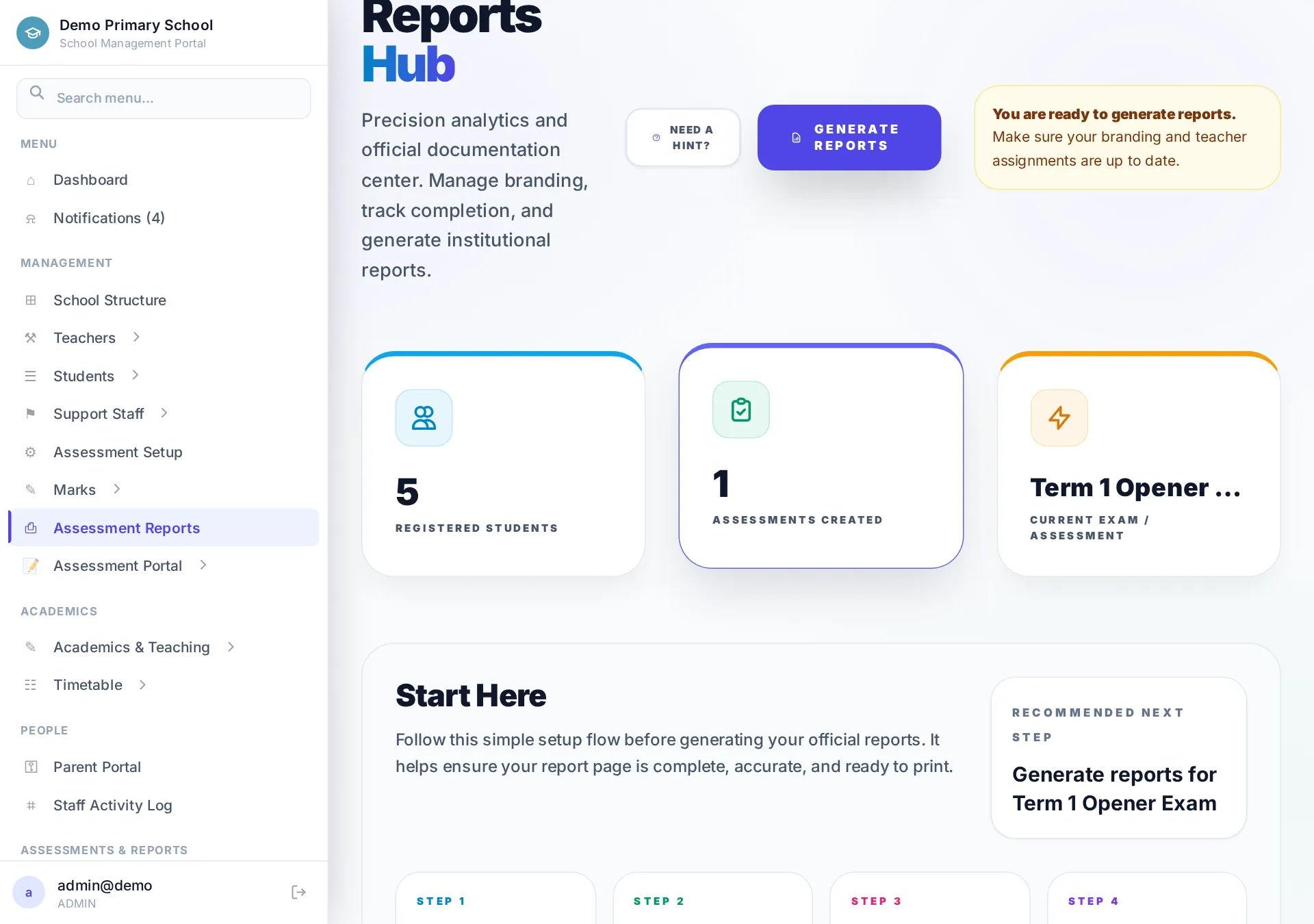
- Preview before printing — open one card to check branding and grading before running the whole class.
- Downloads — PDF for printing/sharing, Excel for analysis.
- Branding — the card picks up your school logo, colours and motto from Reports → Branding.
5. Class analysis
Alongside the cards, Rankings and the Broadsheet give you the class-level view: per-subject means, top performers, and learners who need support — useful for staff meetings and parent days.
What's next?
- Reports: broadsheets, rankings, progress reports, transcripts and newsletters.
- Assessment Portal: compose question papers, run timed online exams and auto-mark objective items.
- Finance: bill fees per term and track collections against the ledger.